
Tagged: Radio Images
- This topic has 7 replies, 3 voices, and was last updated 6 years, 5 months ago by
 ralmestro.
-
AuthorPosts
-
-
November 14, 2014 at 6:16 pm #2797
 zokerMember
Hi there,
Previously I used this framework:
https://github.com/vafour/vafpress-frameworkBut since they do not update their project neither gave support for it, I searched for a new one.
So before I start using your (so far awesome) framework, I have some questions:
– Can I do the same thing with your fw?And I searched your documentation, but I could not find these things:
- Image selector

- Group fields in metabox (see image above)
- A documentation entry, which tells how to output values (or did I simply not see it?)
Thank you so much!
GreetingsFlorian
- Image selector
-
November 16, 2014 at 8:48 am #2806
 SteveKeymaster
@zoker– Thank you for considering Piklist! We really appreciate it.
1) File Upload: We have a file upload field > It allows images and other file types.
2) Meta boxes: Grouping files in a meta-box is core to Piklist, and super easy. This doc should help >If you want to get a good overview of everything Piklist can do, plus a ton of code samples, check out the built-in Piklist Demos >
Let us know if this answers your questions, can of course, let us know if we can help you further.
-
November 17, 2014 at 7:23 am #2810zokerMember
Hi,
Thanks for your feedback.
1. I don’t mean a file uploaded, I mean something like a image checkbox
2. With grouping in metabox, I mean something like subgrouping the items (similar to the one on the screenshot in the first post)
Viewing examples is a very good I idea. I will check the demo 🙂
Thank you
-
November 18, 2014 at 5:31 am #2824zokerMember
Another questions:
I just want to add a metabox to pages.Is piklist overpowered for this use (performance etc)?
-
November 18, 2014 at 1:12 pm #2825
-
November 18, 2014 at 2:47 pm #2826zokerMember
Haha yes maybe 🙂
Will you add image radio? (http://jsfiddle.net/yijiang/Zgh24/1/)
Its useful when you have a layout selector like: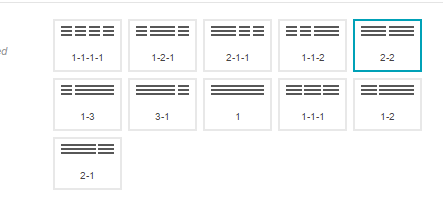
And whats about the subgroup?
Just like this style:

Thank you so much!
-
November 20, 2014 at 10:47 am #2829SteveKeymaster
@zoker– We really try to stay within the WordPress UI styles, that’s why the Piklist fields look so great. Subgroups are not part of that so we probably won’t support out of the box.
As for Image Radio buttons you can create this yourself with a little CSS. Here’s some code to get you started.
1) Add the images as the choices in the Radio field:
  piklist('field', array(
    'type' => 'radio'
    ,'field' => 'my_radio_image'
    ,'label' => 'Choose a Style'
    ,'list' => false
    ,'attributes' => array(
      'class' => 'text radio_images'
      ,'style' => 'display: none;'
    )
    ,'choices' => array(
      'choice1' => '<img width="130px" src="http://path-to-images/image1.png" />'
      ,'choice2' => '<img width="130px" src="http://path-to-images/image2.png" />'
      ,'choice3' => '<img width="130px" src="http//path-to-images/image3.png" />'
    )
  ));
2) Add some CSS to help. You can use inline CSS if you want directly in the same file as the field is in. Something like this should get you started:
<style type="text/css">

  li .radio_images{
    float: left;
    width: 140px;
    margin-right: 10px;
  }

  .radio_images span img {
      padding: 5px;
  }

  .radio_images span img:hover {
      border: 5px solid #ccc;
      padding: 0;
  }

  input.radio_images[type="radio"]:checked + span img {
      border: 5px solid #ccc;
      padding: 0;
    }

</style>
Let me know if that works for you.
-
September 11, 2015 at 1:36 pm #4307
 ralmestroMember
Hi, @zoker – For radio button list I didn’t test the images example but must be work, but I create two example, instead images I have used font icons. Check the attachment image.
- forGender field I use font awesome (need to be queened first using wp_enqueue_style with admin_enqueue_scripts or using piklist_assets)
- for the Align Image Field I use Dashicons (Dashicons is the official icon font of the WordPress admin as of 3.8.)
Radio Fields
piklist('field', array(
	'type' => 'radio'
	,'scope' => 'post_meta'
	,'field' => 'gender'
	,'value' => 'female'
	,'label' => 'Gender'
	,'list' => false
	,'attributes' => array(
		'class' => 'text radio_icon_fa'
		)
	,'choices' => array(
		'female' => '<i class="fa fa-female fa-5x"></i>'
		,'male' => '<i class="fa fa-male fa-5x"></i>'
		)
	));
piklist('field', array(
	'type' => 'radio'
	,'scope' => 'post_meta'
	,'field' => 'image_align'
	,'value' => 'aleft'
	,'label' => 'Align Image:'
	,'list' => false
	,'attributes' => array(
		'class' => 'text icon_radio'
		)
	,'choices' => array(
		'aleft' => '<i class="dashicons dashicons-align-left"></i>'
		,'acenter' => '<i class="dashicons dashicons-align-center"></i>'
		,'aright' => '<i class="dashicons dashicons-align-right"></i>'
		,'anone' => '<i class="dashicons dashicons-align-none"></i>'
		)
	));
CSS
.piklist-field .piklist-field-list-item {
	width: auto;
	height: 100%;
	position: relative;
}
.piklist-field .piklist-field-list-item span i.dashicons {
	font-size: 40px;
	width: 40px;
	height: 40px;
	overflow: visible;
}
.piklist-field .piklist-field-list-item input[type=radio]{
	display: none;
}
.piklist-field .piklist-field-list-item span i {
	color: rgba(0,0,0,0.15);
}
.piklist-field .piklist-field-list-item input[type=radio]:checked + span i {
	color: #00a0d2;
}
Hope this be helpful
Attachments:
You must be logged in to view attached files.
-
-
AuthorPosts
- You must be logged in to reply to this topic.